
Shared Gmail Inbox for Your Team: Stop Sharing Passwords, Start Sharing the Work
By ThinkCloud

There’s a moment in almost every growing business where support breaks. It usually looks like this:
The company email — info@, sales@, support@ — is one Gmail account. Three or four people have the password. Everyone checks it when they remember. A customer emails at 9am, someone reads it, gets pulled into something else, and it’s still unanswered at 4pm. Meanwhile a second person answered it too, in a slightly different tone, promising a different thing.
Nobody did anything wrong. The tool is wrong.
What actually goes wrong when a team shares a Gmail account
Sharing a single mailbox isn’t a minor inconvenience — it quietly breaks five things at once:
1. No accountability. You can’t tell who replied to what. When something isn’t answered, there’s no way to know whose queue it fell out of, because there aren’t any queues.
2. Double replies. Two agents open the same email, both write a reply, and the customer gets two contradictory answers. It’s embarrassing and it makes you look disorganized.
3. Lost emails. An email that’s been read but not answered looks “handled” in Gmail. It gets buried under the next twenty messages and disappears. This is the single most expensive failure — an unanswered lead is revenue you never see.
4. Shared passwords. Rotating a password means telling everyone. Removing someone who left means telling everyone. It’s a security problem hiding inside a workflow problem.
5. Zero visibility. You cannot answer basic questions: How many open conversations do we have? How fast do we respond? Who’s handling the most? Which customers are waiting too long?
A shared inbox is the fix — and it’s not a new idea. Zendesk, Hiver, and Front all sell it. What’s changed is that you can now run one on your own infrastructure, on top of the Google Workspace you already pay for.
What a shared inbox actually does
A shared inbox keeps your Gmail address exactly as it is — customers still email [email protected] and never see anything different. What changes is the inside:
- Every conversation is a ticket with an owner, a status, and a history
- Assignment — someone is responsible for each conversation, and everyone can see who
- Statuses so work can’t hide: New, In progress, Waiting on customer, Escalated, Closed
- Internal notes the customer never sees, so you can ask a colleague for context on the actual email
- Deadlines (SLA) so nothing sits for three days without anyone noticing
- Realtime updates — when a colleague replies or moves a ticket, everyone’s screen reflects it within seconds
- Canned replies your team can insert with a slash command, so the routine answers are consistent
- A satisfaction survey on close — so the quality of the answers is measured, not assumed
- Your existing mail, kept as reference — you choose whether to import history on setup, and imported mail lands as archive, not queue (more on why that matters below)
That’s the whole idea: the work becomes visible and owned instead of living in four people’s heads.
Two views of the same work
Different people think differently about the same queue. A support agent wants a list. An operations lead wants to see the shape of the backlog.
The list view — a familiar inbox, but with the accountability layer on top. Note the status pills, the labels (#billing, #portal), the assignee, and the SLA countdown on each row:

The kanban board — the same conversations as columns. This is where the backlog becomes obvious: nine tickets in New and nothing in progress tells you a story instantly.

Drag a card from one column to another and the status changes for everyone. That’s the whole interaction — no forms, no dropdowns.
Where the time actually gets saved
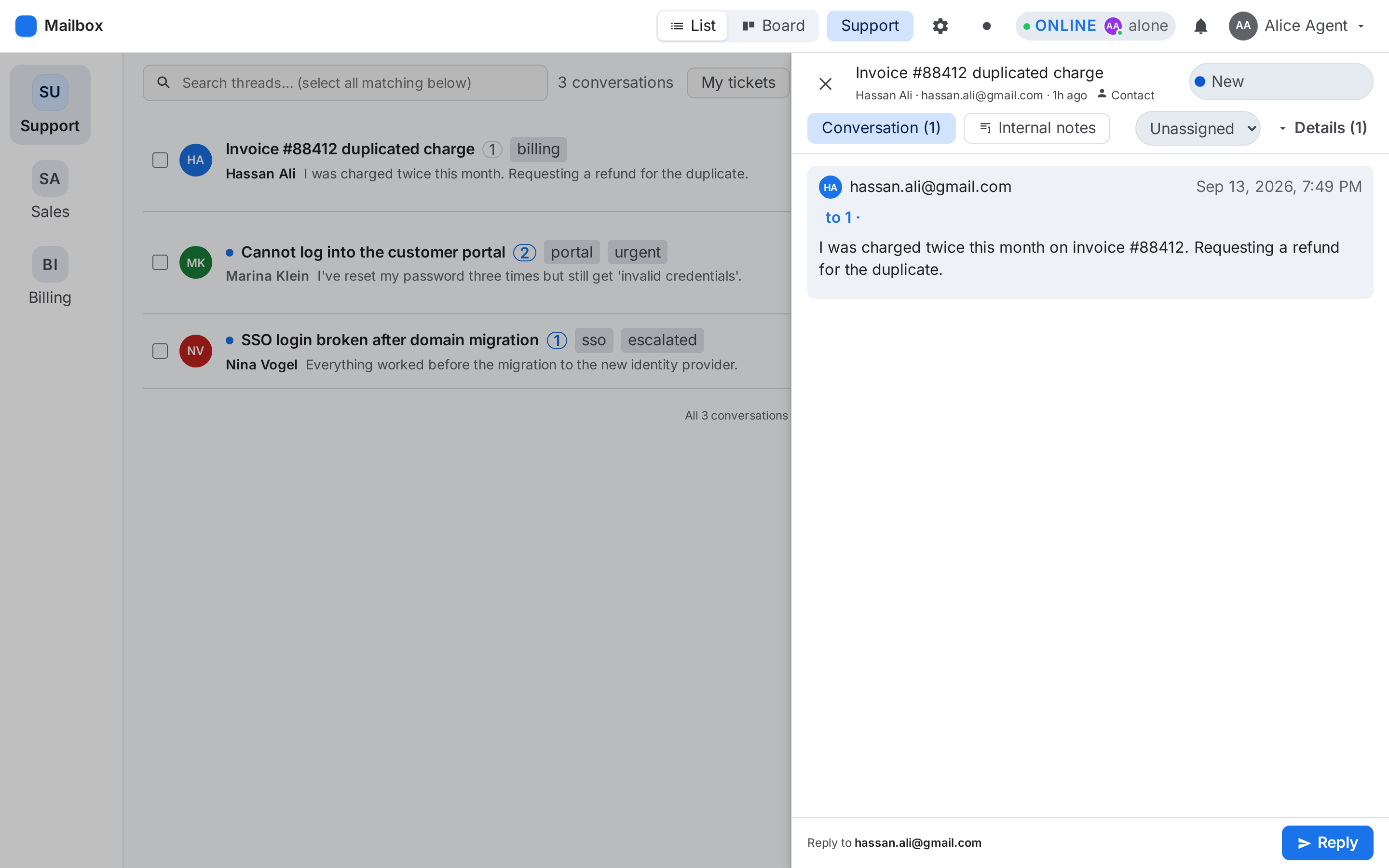
The conversation is the ticket
Open any conversation and you get the full thread, the customer’s contact record, and the reply box — without leaving the list. Internal notes sit alongside the real messages so context travels with the ticket.
Consistent answers, without rewriting the same email
Half of support volume is the same handful of questions. Typing the answer again (slightly differently each time) wastes time and creates inconsistency — one agent promises 3–5 business days, another says “a few days”.
Canned responses fix that. Type / in the reply box and a list of your saved replies appears, each with a preview:

Pick one and it inserts the full response — with any details filled in from the open ticket, so {{customer_name}}, {{customer_email}} and {{subject}} are replaced automatically. The agent still reads it, adjusts the specifics, and sends. It’s a starting point, not an autopilot.
The real value is consistency: the refund policy is explained the same way every time, in your voice, by whoever happens to answer. New team members are productive on day one instead of learning every answer by watching someone else.
Two people can’t answer the same email
When a colleague is drafting a reply, you see it. When a ticket has an owner, it has an owner. That single change eliminates the most common and most embarrassing failure mode of a shared mailbox.
“Waiting on customer” is a real state
The most underrated status. A ticket where you’re waiting on the customer isn’t the same as one where the customer is waiting on you — and conflating them is how real backlogs hide. Separating them makes follow-ups obvious instead of accidental.
Deadlines that escalate themselves
Each new ticket carries a first-response deadline. As it approaches you get an amber warning; once it passes, it turns red and the system escalates the ticket automatically — moving it to an Escalated column, leaving an audit note, and alerting whoever’s on duty.
This is the feature that changes behaviour most, because it removes the need for anyone to police the queue. The queue polices itself.
Connecting a mailbox without drowning in its past
This is the decision almost every shared-inbox product gets wrong, and it’s worth understanding before you buy one.
A mailbox that’s been running for years holds thousands of old conversations — receipts, notifications, security alerts, automated mail, projects that finished in 2024. When you connect it, what should happen to all of that?
Many tools turn the whole lot into open tickets. The result is a support queue with 700 items in it on day one, most of them months old, all of them showing as overdue. The backlog is fake, but it buries the real work you’re trying to manage — and it makes the reporting worthless, because “average response time” is now averaging in mail from last winter.
Ours does it differently. You choose at setup whether to import your existing mail at all:
- Import it — and it comes in as archive: searchable, attached to the customer’s contact record, available as context when they write again. It does not enter the queue and it does not start a deadline clock.
- Don’t import it — and the mailbox starts fresh. You begin with exactly the mail that arrives after setup, and nothing else.
Either way, new mail is the queue. And if a customer replies on an old archived conversation, it comes back into the queue as a live ticket — so you never lose a follow-up just because the original thread was history.
If you’ve already imported and ended up with a backlog of old mail, there’s a one-click clean-up that archives everything nobody ever worked or claimed — leaving only the tickets a human has actually touched.

For general clean-up, you can also search, select all matching, and archive or mark as spam in one action.
Answers to “how are we doing?”
Once every conversation has a status, an owner, and timestamps, reporting stops being guesswork: how many tickets are open, how many are overdue, average first-response time, average resolution time, and per-agent workload.
You can also narrow the whole report to one mailbox and one period — a week, a month, a quarter, a year, or all time. That matters more than it sounds: a combined number across every mailbox is rarely the number anyone actually wants. “How did support do this month” and “how did billing do this quarter” are different questions, and a report that can’t separate them just gets ignored.
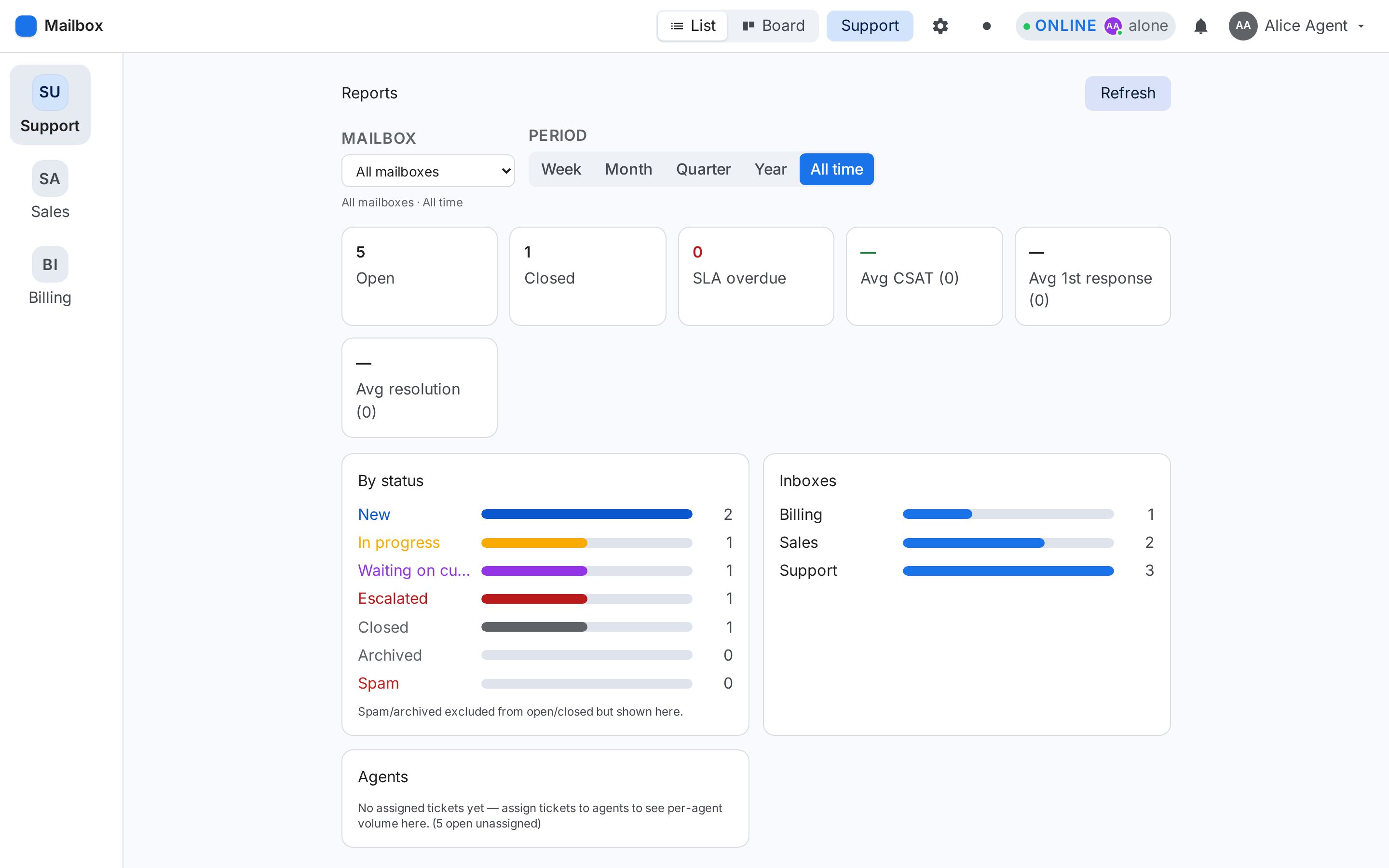
First-response time is the number most support teams never measure and most customers notice first.
Closing the loop: did the customer actually leave happy?
Most teams make a change to their support process and then guess whether it helped. There’s a better way — ask the customer.
When a ticket is closed, the customer automatically gets a short email with a one-question survey: a five-star rating and an optional comment. It takes them ten seconds, and the answer lands back on the ticket.

Now the feedback isn’t in someone’s inbox — it’s attached to the conversation it’s about. You can see that this specific issue was resolved well, and the average rating rolls up into reporting:
- Which conversations got a low rating (and what the customer said)
- The average satisfaction across a period
- Whether a process change actually moved the number — because you have a before and after
That’s the difference between “we think support improved” and “support satisfaction went from 4.1 to 4.7 this quarter.”
CSAT is one question by definition — a rating and an optional comment. That’s what the instrument is, and it’s why people answer it.
The part worth checking when you compare tools is the default: whether a survey goes out should be a decision your business makes on purpose, not something you learn because a customer replied to a survey you didn’t know about. Ours ships off — you switch it on when you’re ready.
And be realistic about the answers. Most customers won’t respond, and the ones who do skew to the extremes; the quietly unhappy say nothing. It won’t catch everyone. But a low rating tells you something is wrong while you can still do something about it.
“Can’t I just use a Gmail label and a filter?”
For a two-person team with ten emails a day, a label and a shared password genuinely might be enough. It stops being enough when:
- More than two or three people answer customers
- Response time actually matters to your revenue
- You need to know who did what
- Someone leaves and you have to rotate a password everyone shares
- You want to promise a customer a response time and be able to keep it
The honest threshold is when losing one conversation costs more than fixing the process.
What to look for if you’re choosing one
If you’re evaluating shared inbox tools, here’s what actually matters — and where most of them fall down:
| What to check | Why it matters |
|---|---|
| Keeps your real Gmail address | Customers shouldn’t notice a migration. Your address is your brand. |
| Threads correctly | If replies don’t land inside the customer’s existing email thread, your outbox looks like spam. This is the #1 thing cheap tools get wrong. |
| Statuses you actually use | Too few and everything is “open”. Too many and nobody updates them. |
| SLA + automatic escalation | A deadline that nobody enforces is decoration. |
| Internal notes on the real email | Context has to live where the work is, not in a separate chat app. |
| Handles non-English content | Customer names, subjects, and replies are full of accents and emoji — and subject lines for international customers are often encoded. Tools that mangle them look broken. |
| Where does your data live | Multi-tenant SaaS means someone else holds your customer email. Self-hosted means you do. |
| Attachment handling | Customers’ files should be downloadable, not just listed. |
That last-but-one row is worth pausing on. Most shared inbox products are cloud SaaS — your customers’ email sits on someone else’s servers, priced per seat, per month, forever. There’s a real alternative now.
Built on Google Workspace
- Your Google Workspace, your Gmail — we connect through Google’s own API with domain-wide delegation, so mail flows through the mailbox you already have
- Your servers — it runs on your own infrastructure. Your customer conversations stay yours
- Gmail threading, done properly — replies land in the customer’s existing conversation, including the headers that keep the thread intact
- Built-in SLA with automatic escalation so deadlines enforce themselves
- Canned responses insertable with
/, with placeholders filled from the ticket - Built-in satisfaction surveys — automatic on close, rated and commented, tied to the ticket and rolled into reporting
- Automated follow-ups — the nudge sequence and auto-close that Google’s options don’t have at all
- Kanban + list, bulk clean-up, signatures, contact history, and reporting
- Actually multilingual — accents, emoji, and non-Latin subject lines survive intact, because we made the mail parsing correct rather than assuming everyone writes in English
If you’re on Google Workspace and your team is already sharing a password, you’re one step away from a proper shared inbox without changing your email address or moving to another SaaS subscription.
Where to start
- Count the cost first. Pick last Monday and find every customer email that took more than a day to answer, or that two people answered. That number is your business case.
- Decide what “answered” means in your business — first reply, or resolution? That becomes your SLA.
- Get visibility before automation. Assignment and statuses are worth more than any chatbot in the first month — you can’t automate a process you can’t see.
- Then automate the repetitive parts — canned replies and follow-ups on silent customers.
- Measure the outcome, not the activity. Counting tickets closed tells you how busy you were. Asking customers how it went tells you whether it worked.
If you’d like to see how this works in practice, we can show you the app running on a live inbox — a 30-minute walkthrough, no preparation needed. And if you’d rather have a hand working out which of this your team actually needs, we’ll look at your current mailbox and tell you honestly what’s worth fixing and what isn’t.